3D Furniture Editor on Small Screens: Compact View
Smaller laptop? The new compact mode hides the top toolbar and right column in Prosciej, giving you more space for your furniture design.
Not everyone designs on two monitors. On a 13-inch laptop, the editor panels can take up so much space that only a narrow strip in the middle is left for the furniture itself. This change came directly from a user request and has been released as a new compact editor view.
Small-screen hint
When Prosciej detects a low resolution, a hint appears in the corner of the header letting you know that the view can be collapsed. Nothing happens automatically — the mode is turned off by default, and you decide whether to enable it. The setting is saved in your browser, so when you return to your project, it looks just as you left it.
Compact toolbar
The first toggle hides the entire top row of tools. Above the scene remains a small island with what you use most often: add panel, add furniture, Prosciej, move, rotate, and a button that opens the full menu. By default, only icons are visible, with descriptions appearing on hover or when navigating to the button via the Tab key.
Less frequently used toggles — build animation, checkpoints, follow furniture, and isolated view — have moved from the toolbar into the Tools panel. They haven't disappeared; they just no longer take up space on top.
Collapsible right column
The second toggle collapses the right-hand properties column into a narrow strip along the edge. To use it, simply hover your mouse over it: the column slides out over the scene, you adjust what you need on the selected piece of furniture, and it retracts on its own when you move the cursor away.
An important detail: the expanded column overlays the scene instead of squeezing it. Because of this, the furniture view doesn't jump or reframing with every mouse movement. And if you prefer having the column handy at all times, you can pin it with the padlock icon — then the scene narrows intentionally, just once.
Movable smart element window
Alongside these changes, the smart elements window is no longer fixed in one spot. You can now grab its header and drag it wherever it won't block your view of the furniture — just like the room creator.
The result is simple: noticeably more workspace on smaller screens, while all tools remain just a hover away. To see the full workflow from room dimensions to pricing and cut lists, check out the demo from dimensions to pricing and DXF.
You can try the new view right away in the free editor demo, no account required.
More articles
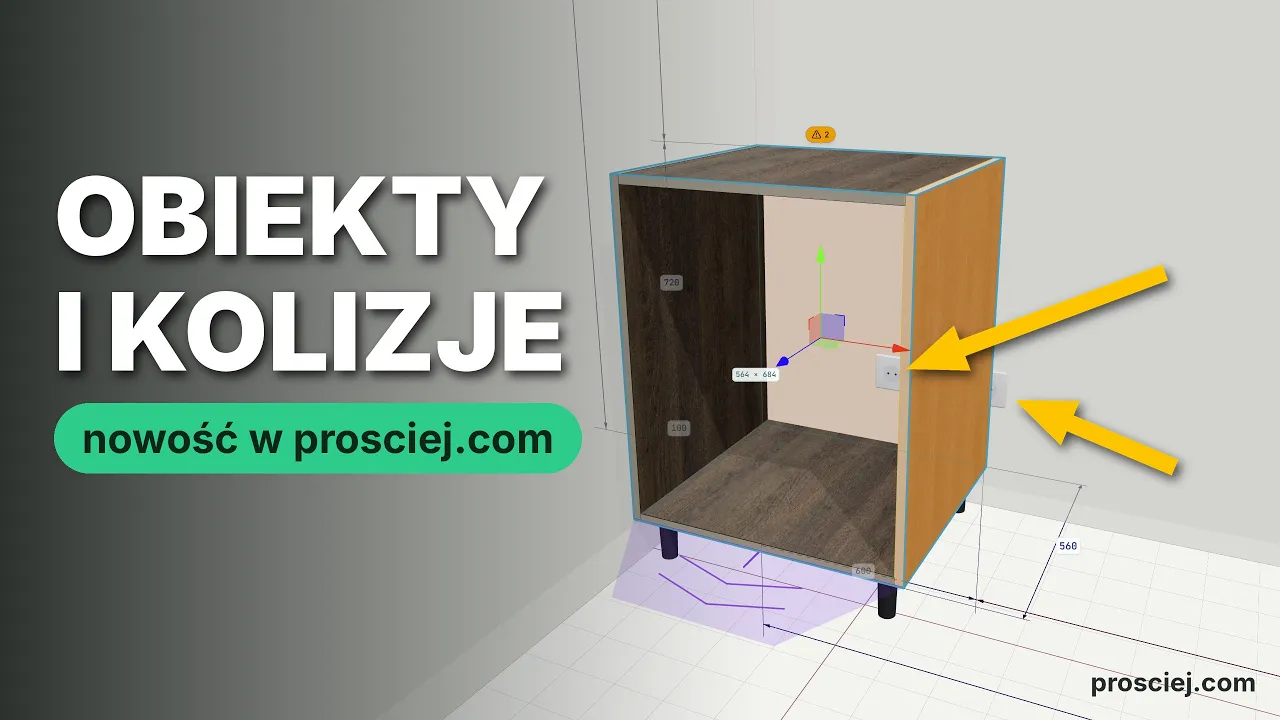
Furniture & Outlet Collisions in 3D Before Assembly
Avoid costly installation errors. Spot collisions between furniture, outlets, walls, and doors in 3D before assembly begins.
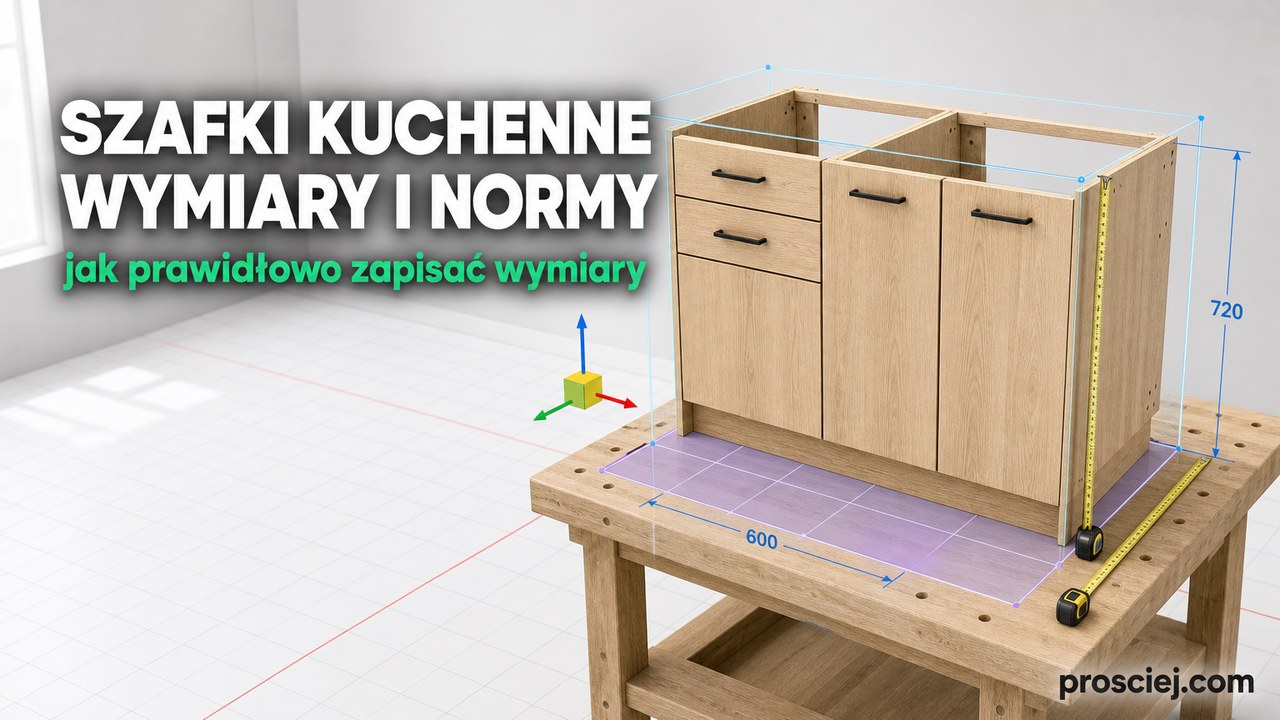
Kitchen Cabinet Dimensions: Sources & Drawing Rules
Where to get kitchen cabinet dimensions, which standards regulate them, what they omit, and how to correctly dimension cabinets and kitchen plans.