Furniture & Outlet Collisions in 3D Before Assembly
Avoid costly installation errors. Spot collisions between furniture, outlets, walls, and doors in 3D before assembly begins.
The most expensive mistakes happen during installation: a cabinet blocks an outlet, a door hits a lamp, or a piece of furniture doesn't fit in a niche. In this video, I show how the software catches them right in the design stage. The three new room objects were suggested by a user — thank you.
How to add outlets and switches in a room design
- In the room wizard, go to the "Objects" step (formerly "Openings").
- Click the wall you want to work on — the view will rotate toward it.
- Add a single, double, or triple outlet or a light switch and set its height.
- Click "Done" and return to the furniture.
When you push a cabinet against a wall with an outlet, the panels covering it will flash, and the issue list will tell you directly: the furniture is blocking an outlet. If you plan to cut a hole in the back panel anyway, you can accept the warning and it will stop showing up.
Solid object: drywall casing, lamp, or an unusual niche
A solid object is a rectangular cuboid with its own width, depth, and height. It stands on the floor, hangs from the ceiling, or adjoins a wall, and you can move it like furniture and name it to keep the project clear. It behaves like a wall, so it's perfect for drywall casings, custom niches, or a chandelier in the middle of the room.
Furniture won't clip through walls or other furniture
Furniture now collides with walls, solid objects, and other furniture. Previously, you could slide a cabinet right through a neighboring one — today it stops at the point of contact. Combined with snapping, arranging a row of cabinets is much faster.
How much space is left: maximum cabinet width
When changing width, height, or depth, a red line appears showing where the furniture still fits — taking walls, solid objects, and adjacent cabinets into account. If you insist, drag harder and the line will release.
Cabinet doors that won't open
Doors open only up to the first obstacle. If you move a wardrobe under a lamp created from a solid object, the program will immediately warn you that the door panel won't open. "Open fronts" will show the collision in 3D before the customer sees it.
Rotating panels, field math, and elastic shelf dragging
You can rotate a loose panel using the ↺ / ↻ buttons or toggle "To vertical" / "To horizontal", and the dimension fields will follow: after rotation, height becomes width. You can type math expressions into any dimension field: addition, subtraction, multiplication, division, including parentheses — no calculator needed. You pull a shelf out of a cabinet only with a firmer drag: first it stretches like a rubber band, then pops out as a separate panel. When inserted into another cabinet, it adjusts to fit its interior.
I showed drawers in dividing a cabinet into drawers. Test collisions in your own room in the editor demo.
More articles
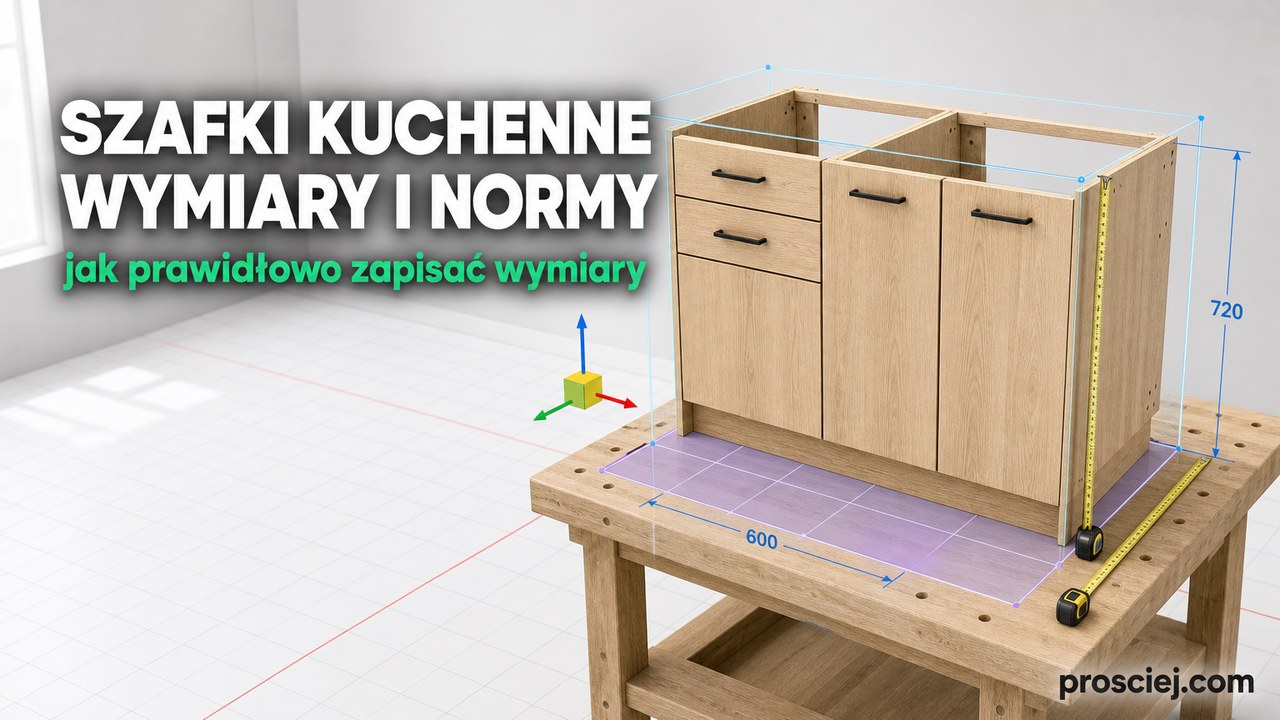
Kitchen Cabinet Dimensions: Sources & Drawing Rules
Where to get kitchen cabinet dimensions, which standards regulate them, what they omit, and how to correctly dimension cabinets and kitchen plans.
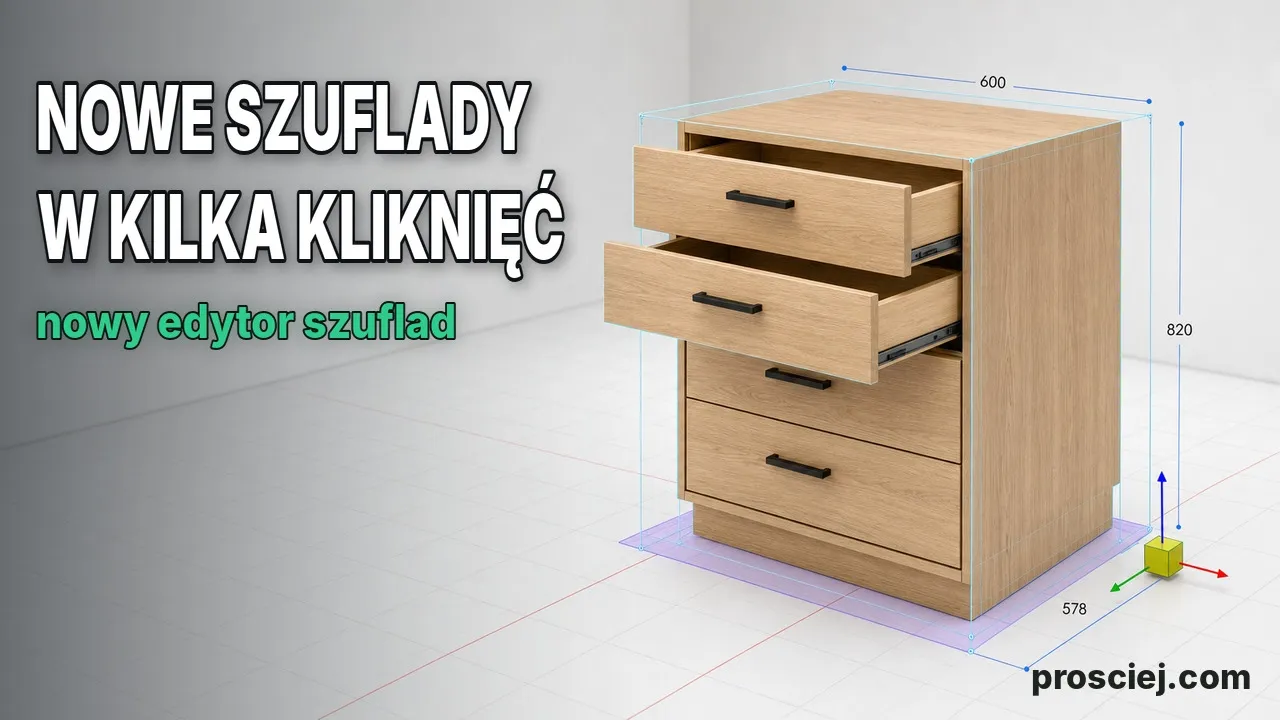
Dividing Cabinets into Drawers: Front Heights in 3D
Divide cabinets into drawers in 3D: set front heights, add internal drawers, leave open spaces, configure handles, and adjust dimensions easily.