Dividing Cabinets into Drawers: Front Heights in 3D
Divide cabinets into drawers in 3D: set front heights, add internal drawers, leave open spaces, configure handles, and adjust dimensions easily.
In cabinet with drawers in a minute, the drawers were inserted by a wand into divisions previously drawn on the furniture. That wand stays, but next to it is a new tool: you plan drawers directly on the drawing of the recess itself, without drawing divisions first.
How to divide a cabinet into drawers
- Select the piece of furniture, go to "Easier", and open "Smart Elements".
- In the "Drawers" row, click "Drawers in recess". The recesses where drawers can be added will highlight.
- Click a recess. A window with its drawing and dimensions will open.
- "Number of divisions" sets how many drawers you want. They are equal by default.
- "Add drawers" inserts them into the furniture.
Drawer front height in millimeters
Drag the division between drawers on the drawing or click the height and type millimeters. The padlock locks the height of a single drawer: when you change others, it stays fixed, while the rest is split among unlocked drawers. "Equalize" divides the remaining free height equally, leaving locked ones unchanged. Guide lines split the recess into equal parts, for example in half or into three parts, and the dragged division snaps to them.
Dresser with open space above drawers
Each space can be toggled between "Drawer" and "Empty". In the video, I create drawers in the lower half of the cabinet: a guide line in the middle, a padlock on the empty space at the top, "Equalize", and the two drawers below become equal. With empty space at the top, the window suggests a "Partition above drawers"—a horizontal shelf closing the drawers from above. Clicking a recess with existing drawers opens their layout for editing, for example changing them to four equal ones and clicking "Save changes". Ctrl+Z undoes the entire change in a single step.
Internal drawers behind doors
In the window, choose "Overlay" or "Internal (behind doors)", though you don't need to track this manually. When you add doors in front of the recess, drawers automatically tuck behind the door leaf, and their fronts do not protrude. Handles that were already on those drawers can be removed manually: click the handle and press Delete.
Handles on all drawer fronts at once
After "Add drawers", you can finish or click "Set handles". A handle placed on one front immediately appears on all new drawers, while a vertical guide line helps align it in the center.
Overall dimensions, snapping, and collapsible sections
"Overall" dimensions show only width, height, and depth, while clicking a cabinet adds its specific measurements. "Clearances in fields" shows the inner clearance as a number inside the recess instead of lines, and "Contrasting dimensions" adjusts line color relative to the background. "To furniture" snapping sticks the moved item to its neighbor, with magnetic strength controlled by a slider. In Global Settings, "Collapsible sections" collapse less frequently used parts of the Properties panel. This option is disabled by default.
Test drawers in recess in the editor demo, no account required.
More articles

3D Furniture Render: Lights, LEDs, and Roof Windows
3D furniture rendering in browser: lamps, LED strips, roof windows, token-free Prosciej Render, and client AI visualization.
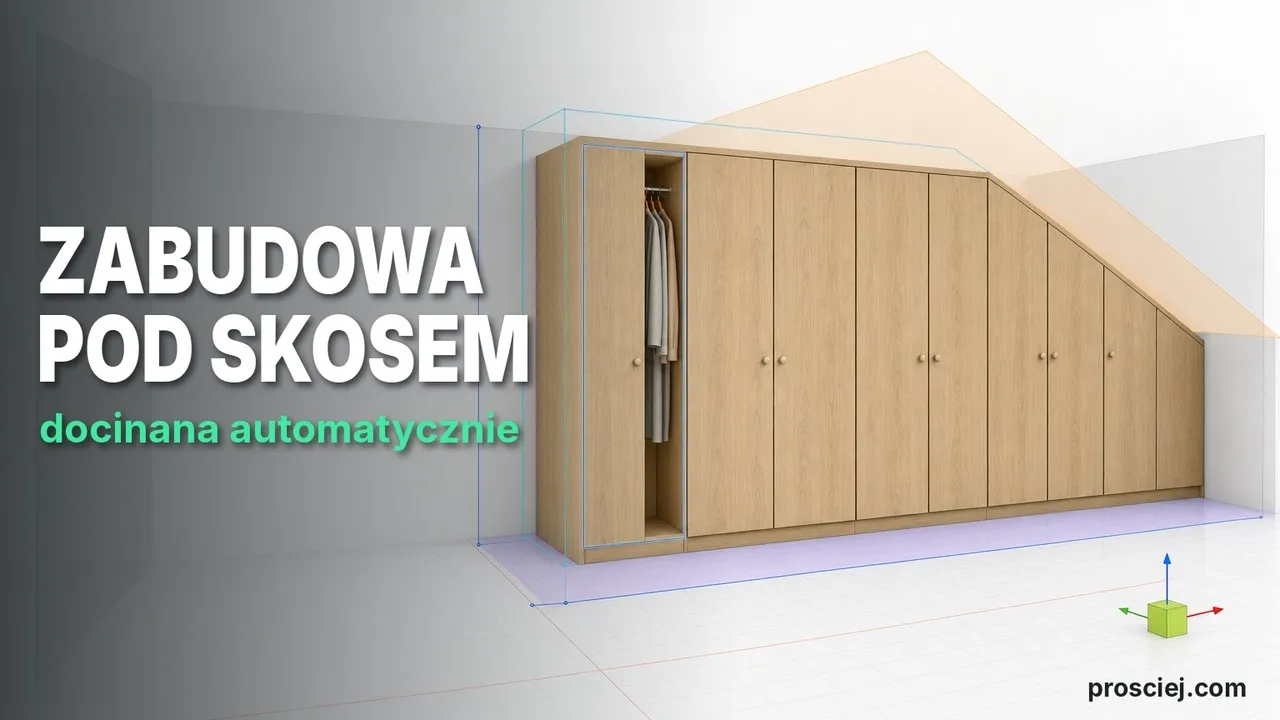
3D Sloped Fitted Furniture: Slanted Cut Panels
3D sloped fitted furniture: slanted cabinet units, fillers, and doors, ceiling-high fronts with bevel angle, and client drawings.