Custom Keyboard Shortcuts in Furniture Design Software
Custom keyboard shortcuts in furniture design software: right-click, "Set shortcut", press key combo, "Confirm". Works across every project.
Keyboard shortcuts in the furniture design software used to be hardcoded in prosciej.com. Now, toolbar buttons get your custom keys, including those that never had one before. If you're switching from another software, your fingers are trained on different shortcuts, so you can set your keys to match your workflow.
How to set a custom keyboard shortcut
- Select a panel (the button must be active) and right-click the button on the top toolbar, left bar, or properties panel—for example, rotation around the X or Z axis, which has no shortcut by default.
- Select "Set shortcut".
- When the window displays "Press a key combination...", press your combination.
- Click "Confirm".
From now on, this combination executes the button's action.
Keyboard shortcuts on Mac and Windows
Hover over a button, and the tooltip will show its description and shortcut key, provided the button has one. For "Paste", you will see Ctrl+V on Windows or ⌘V on Mac, so you don't have to translate shortcuts in your head. Tooltips do not appear on tap when using a touchscreen, as shortcuts are meant for keyboard use.
What to do when a shortcut is taken
The dialog will warn you which action the pressed combination currently belongs to, so you won't overwrite another action's key by accident. "Take shortcut" reassigns the key from the previous action, and nothing is saved without your explicit decision. Shortcuts reserved by the browser or operating system, such as Ctrl+W or F11, will not be accepted, so press a different combination. Mouse gestures, arrow keys, and Esc remain fixed, and the list marks them as "fixed".
Where to view the list of shortcuts
The "Shortcuts" button in the top bar opens the full list, and next to every customizable action is an option to "Set shortcut" (which changes to "Change" after customization). The "Your shortcuts" section gathers all your changes in one place, while the "Only mine" filter isolates just your custom keys. Customized actions display their default key alongside, making it easy to see what has changed.
How to restore the default shortcut
You can revert changes via the same right-click menu. "Restore default" brings back the factory key assignment. For a button that originally had no assigned key, this option is named "Remove shortcut", clearing your key and removing it from the tooltip.
Do shortcuts work across every project?
Shortcuts are saved to your account, so your key settings work across every project. In the account-less demo, they persist only within that specific browser and will not transfer to another computer. There is no shortcut set export or prebuilt profiles from other software, so you set your keys one by one.
The full list of shortcuts, including undo and redo, is detailed in the article on panel snapping, groups, and undo. Try it out in the editor demo without creating an account: set a custom rotation key and see how smooth working with your hand on the keyboard can be.
More articles
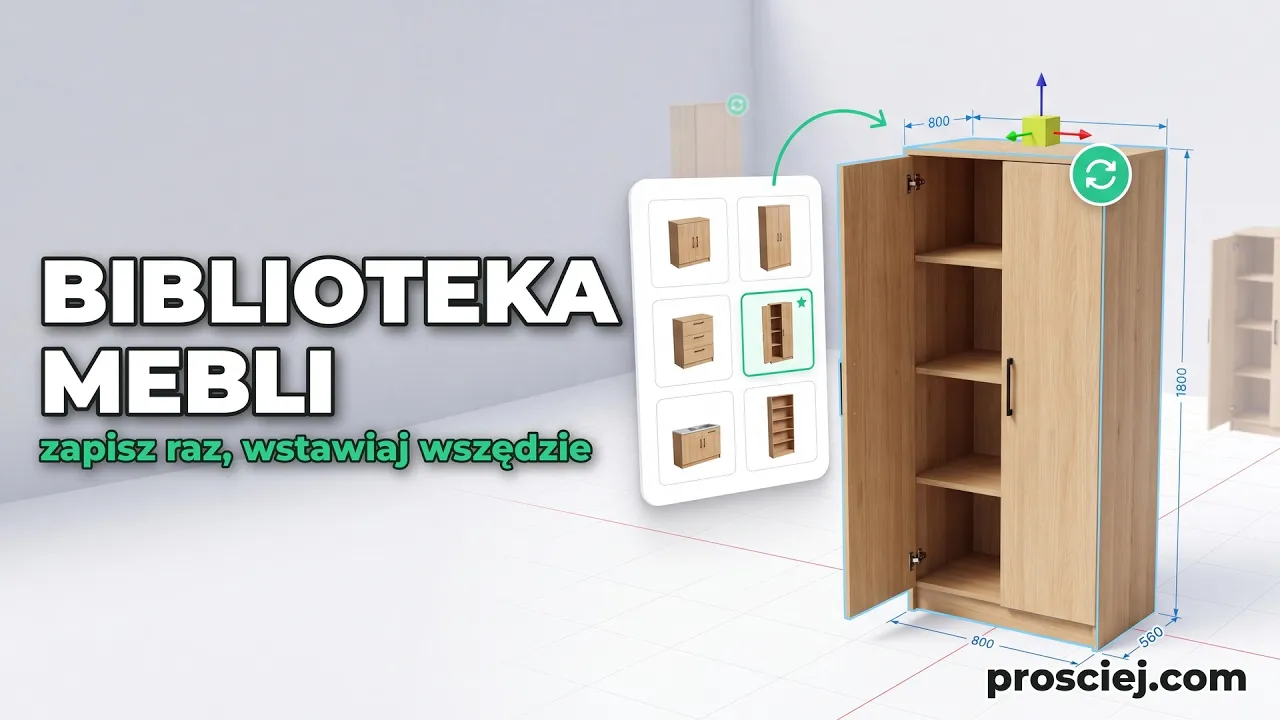
Furniture library: save a cabinet once, use it anywhere
Furniture library in prosciej.com: save a cabinet once, insert it into any project, and choose where to apply updates after making changes.
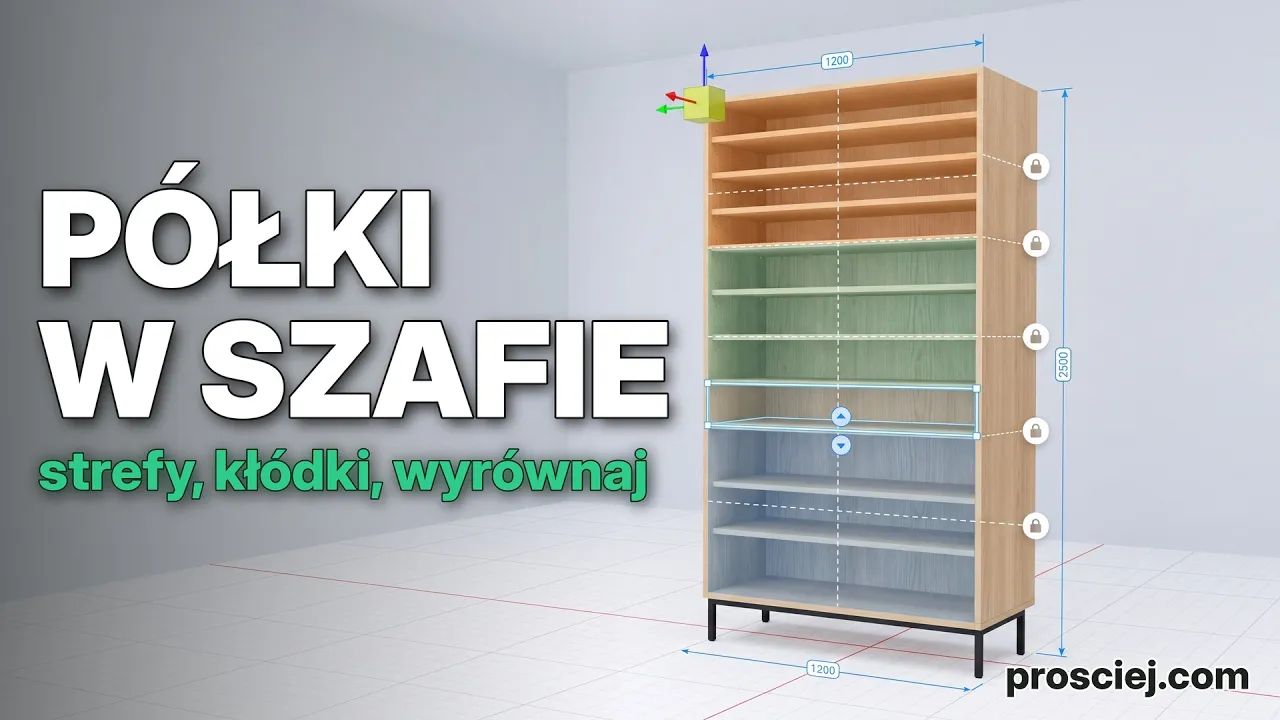
Cabinet Shelves: Spacing, Zones, Adjustable or Fixed
Configure cabinet shelves in one window: count, mm spacing, multi-gap zones, adjustable or fixed. Panel sizes calculate automatically.