Online Board Cut List Optimizer: Manual or 3D Cutting
Board cut list optimizer in prosciej.com: enter parts manually or import from 3D project. View sheet layouts complete with grain and edgebanding.
The board cutting optimizer has been part of prosciej.com from the beginning, but it used to hide inside the PDF: first the piece of furniture, then the cut list, and only then the sheet layout. Now it is a standalone module. Next to projects, you will find "Cut lists", and the sheet recalculates on screen as you type.
Board cut list without a 3D project
Have dimensions on a piece of paper? Open the "Cut lists" tab on your dashboard.
- Click "New cut list" and choose a decor.
- Manually enter the description, dimensions, and quantity. Press Enter to move to the next row.
- Mark the edges for edgebanding.
You can also paste the list from Excel or import it from a CSV or XLSX file. Add another board using the "Add parts from another board" button. The full sheet layout on an account is part of the paid plan; the home page demo shows it for free.
Sheet preview and part highlighting
On a longer list, you can quickly find any part on the sheet. Hover over a row, and its corresponding parts light up on the layout. It works the other way around, too: clicking or hovering a part on the sheet highlights its row. If you have multiple sheets, the preview automatically switches to the board containing that part.
Grain direction in board cutting
On solid-color boards, grain direction doesn't matter, so the program can rotate parts freely. On a manually entered list, AUTO aligns the decor grain along the longer side, and in the "Grain" column, you can change this to along the length or along the width. A part with grain enabled rotates only in a way that aligns its grain with the board's grain.
Edgebanding, saw kerf, and margin trim
The default edgebanding thickness on the list is 0.8 mm. If you add another thickness, an "Edgebanding" column appears in the table, allowing each part to have its own. Keep just one, and the column disappears.
In the cut list settings, you can enter a margin trim per side to cut off damaged edges, as well as the saw kerf. The "Cut size minus edgeband" toggle is enabled by default and subtracts the edgeband thickness from the cutting size. Turn it off if you are entering already-reduced dimensions. In a 3D project, "Account for edgeband in cut size" does the same thing so that reveal gaps match after edgebanding.
Cut list from a 3D project
Build a piece of furniture in the editor, go to "Cut list", and click "Open list". You don't have to transcribe anything: the same window already contains rows with edgebanding, and it pulls edgeband thicknesses from global settings. You change dimensions in 3D, while edgebanding and grain can also be edited here.
A small furniture preview in the bottom right corner shows which part the row refers to. For multiple items, toggle "Per piece", and the list will split into separate tabs. PDF pricing and DXF cut layouts are described in our article from dimensions to DXF.
Free board cut list optimizer on the home page
You can optimize board cuts for free without an account on the home page, under the "How many boards do you need?" section: up to 30 rows, one decor, 2800 × 2070 mm sheet size. You can save the layout via screenshot. A free account stores one cut list. Full sheet layout on your account, instant quotes, and downloading PDF, DXF, or supplier files require a paid plan.
Try out the editor in our demo without creating an account.
More articles
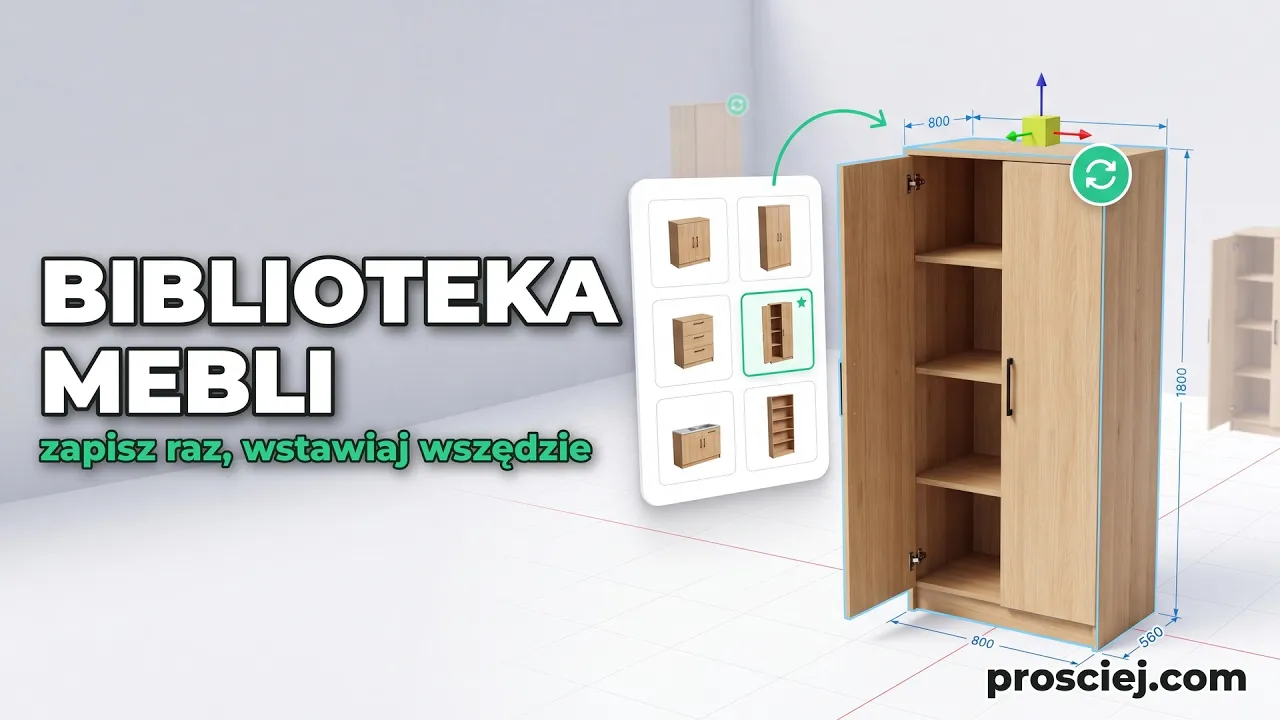
Furniture library: save a cabinet once, use it anywhere
Furniture library in prosciej.com: save a cabinet once, insert it into any project, and choose where to apply updates after making changes.

Cabinet Shelves: Spacing, Zones, Adjustable or Fixed
Configure cabinet shelves in one window: count, mm spacing, multi-gap zones, adjustable or fixed. Panel sizes calculate automatically.