Furniture design software assistant: ask where to click
3D furniture editor Assistant: type what you want to do and it highlights the button step by step. Plus tall kitchen units and appliance niches.
Instead of another episode on built-ins, I have something you asked about in your questions: where a given option is and how to do something. The answer is the Assistant in the editor. Finally, I return to the kitchen from the previous episode and add a tall cabinet and an appliance niche.
How to find a tool in the furniture design software
You open the Assistant with the “Assistant — find tool” button. Type in your own words what you want to do, and it recognizes the question and shows the right place on the screen. It doesn't click for you or change anything in the project, it just guides you. Exception: when there is only one piece of furniture in the project, it selects it automatically.
How to add drawers, shelves, and doors
- Type “how to add drawers” and press Enter.
- The Assistant asks you to click the furniture in the Structure tree.
- Then it highlights “Simpler”, “Smart elements” and the drawer button, labeled “Here”.
- Steps check off automatically, so you don't have to return to the window to click “next”.
You can ask the same way about shelves, doors, countertops, handles, or saving furniture to the library.
Where to change the gap between fronts
When asked about gaps between fronts, the Assistant highlights the slider and shows the current value for that piece of furniture in the project. It suggests the project-wide setting alongside under “See also”. If an option is unavailable, it explains why instead of remaining silent.
Tall cabinet for a fridge in kitchen units
In the built-in wizard, select the lower section on the split wall. Through the gap, a dashed bridge appears with a “Connect runs” button. After clicking, the section runs from the floor to the top of the wall cabinets, and the gap disappears only across its width. Adjacent sections stop at the tall unit, and the countertop automatically extends to its side after moving the section.
Niche for a fridge and dishwasher
Mark an empty cell as “Appliance niche” and choose the type: fridge, dishwasher, oven, washing machine, or other. The wizard reserves this space. It won't insert a cabinet body, won't suggest a filler strip, and will extend the countertop over a dishwasher or washing machine between cabinets. The niche does not add panels or cost.
Try it without an account
You can test the Assistant and the built-in wizard in the editor demo.
More articles
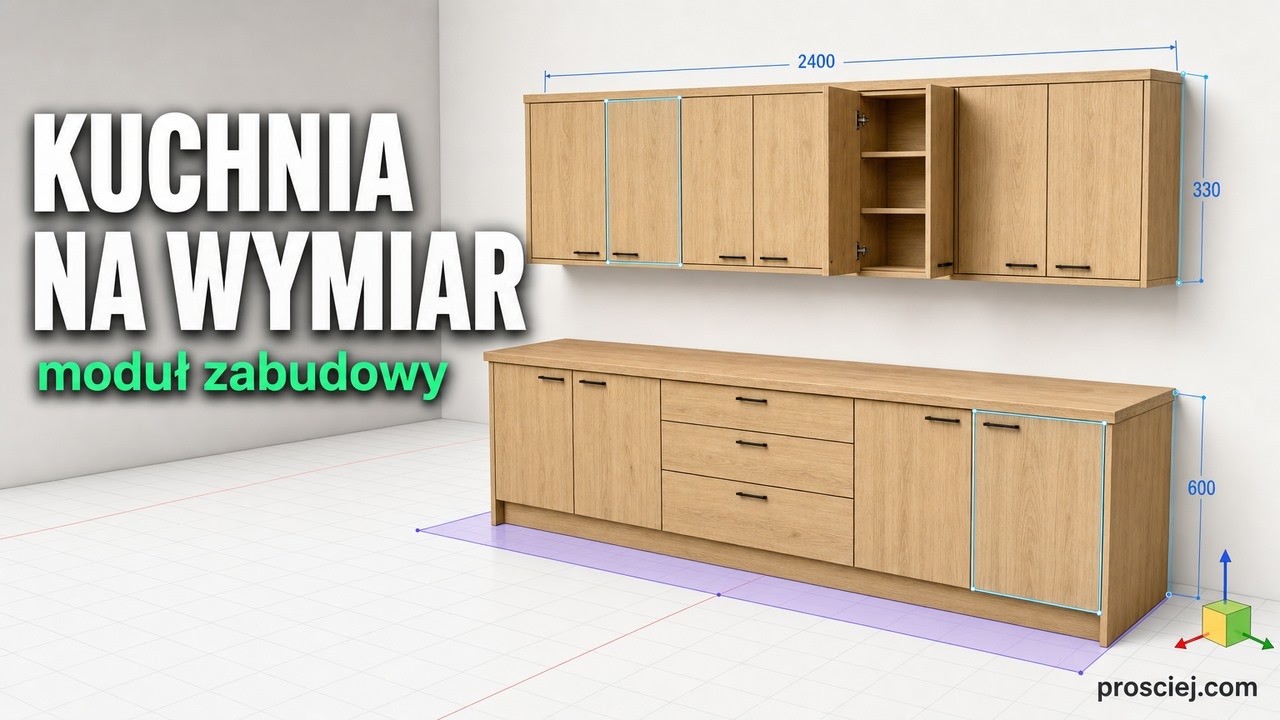
3D Kitchen Built-in: Base and Wall Cabinets Effortlessly
3D kitchen built-in: base and wall cabinets with custom depth, library units fitted to size, bottom cladding, and full-length countertop.
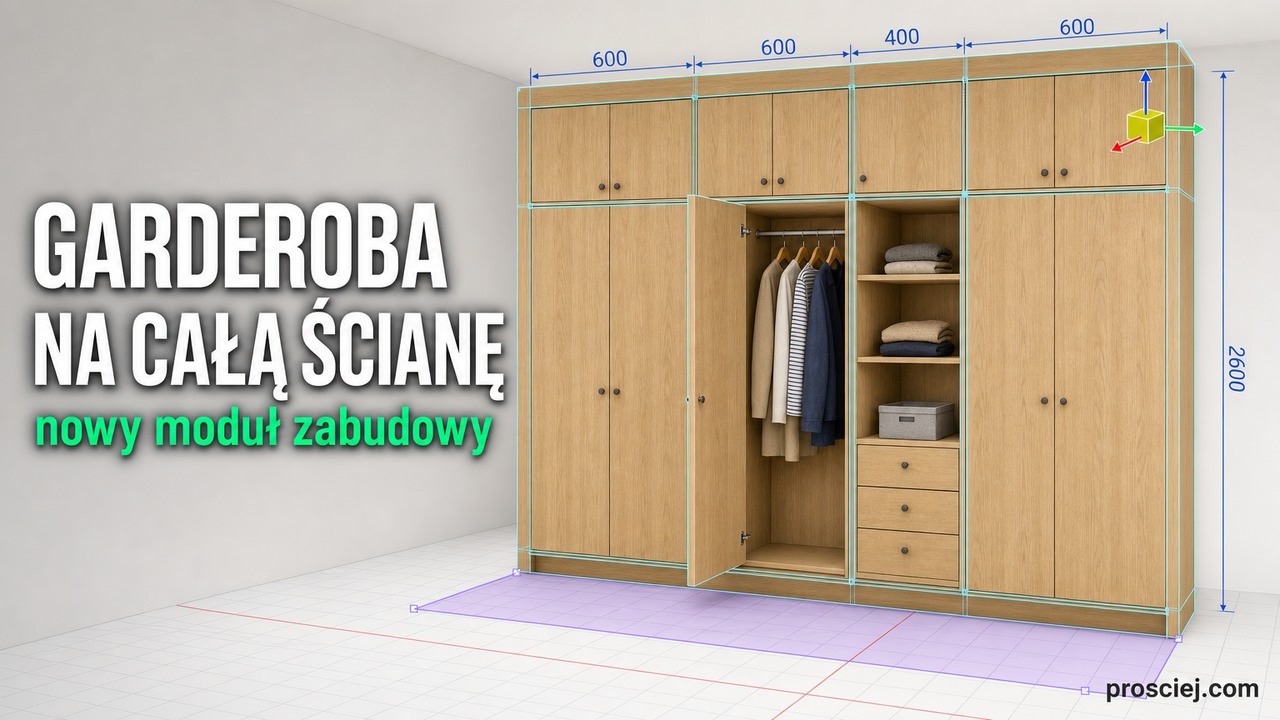
3D Custom Wardrobe: Full-Wall Furniture Planner
Custom wardrobe in 3D: the planner divides the wall into cells, places cabinets from the library, and automatically suggests filler strips.